QuickBooks & Xero Integration: No Exports, No Copy-Paste
Last updated: August 6, 2026
Somewhere in most monthly reporting processes there's a step that looks like this: log into QuickBooks or Xero, run the P&L report, export it, open it in Excel, and copy the numbers into whatever workbook actually drives the board deck. It's a small step. It's also a step you repeat every single month, and every repetition is a place a formula can break, a column can shift, or a stale export can quietly get used instead of a fresh one.
If you're doing this once a month for one entity, it's an annoyance. If you're doing it for multiple regions or a multi-client accounting practice, it's the same annoyance multiplied by however many businesses you're reporting on.
What a direct connection should mean
Connecting accounting software directly should mean exactly that: no export, no intermediate file, no copy-paste. It should also mean read-only access — a reporting tool has no business writing back to your books — and it should mean the connection stays live, so next month's report doesn't require repeating the setup.
How getnarrateai handles it
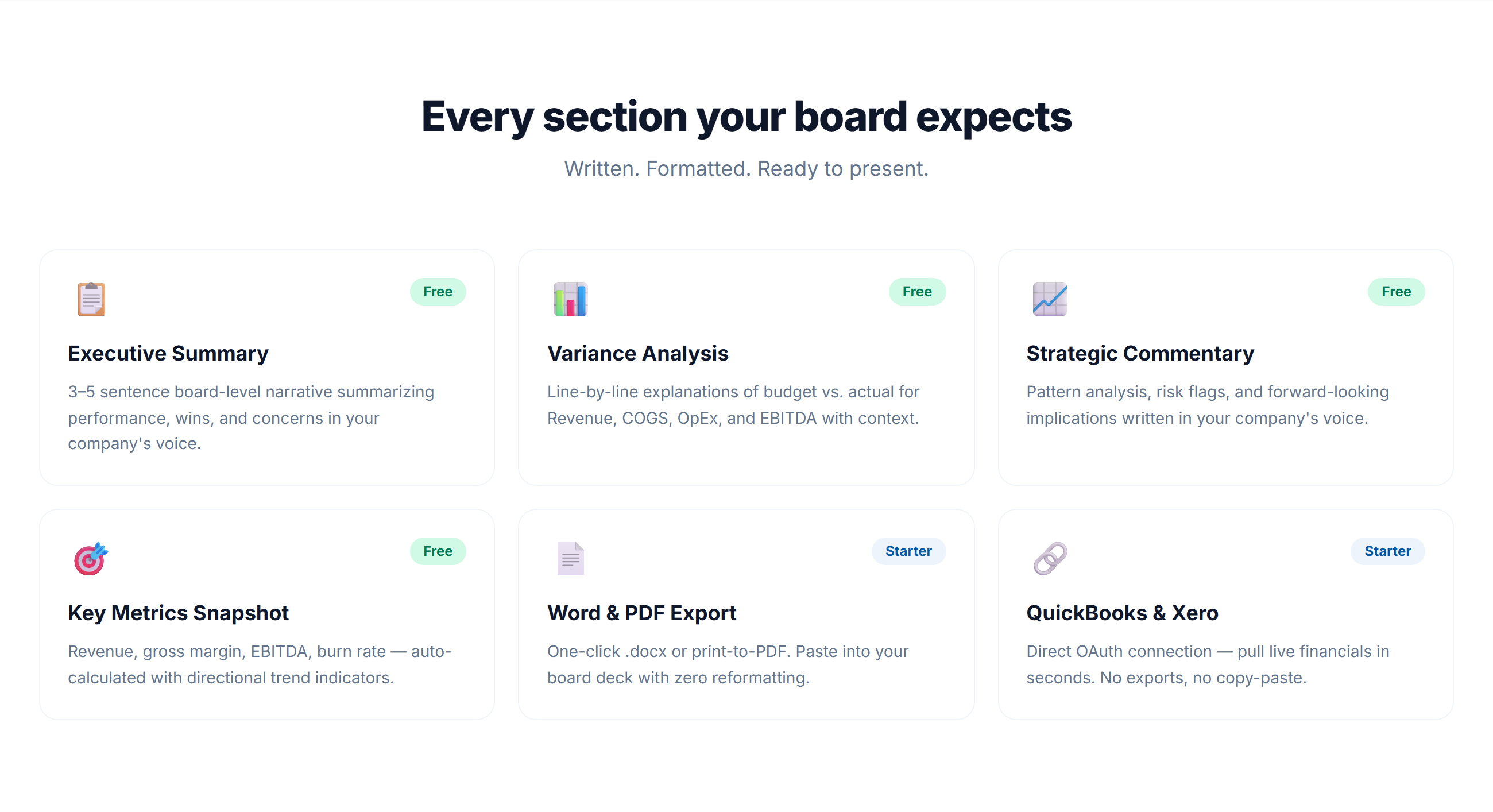
getnarrateai connects to QuickBooks or Xero via OAuth — you authorize it once with your own credentials, and getnarrateai pulls your Profit & Loss data directly, matched against whichever comparison period you choose (prior period, prior year, or budget). It's read-only: getnarrateai never writes anything back to your books, it only reads. If you'd rather not connect an integration at all, a CSV or Excel upload works exactly the same way.
For anyone managing more than one entity — multiple regions, multiple departments, or a practice reporting for several clients — this is the piece that actually saves the hours: connect once per entity, and every month after that is just generating the report, not rebuilding the pipeline to it.
This is a Starter-plan feature. See the full three-step flow in how getnarrateai works, or connect your own QuickBooks or Xero account at getnarrateai.com.